Tabs and Indents
The Microsoft Word ruler enables
you to quickly align paragraph text. A paragraph indent sets a specific
starting point for a line of text. The indent position for a paragraph
overrides the left margin setting for that line. Creating tabs stops enable you
to align text at precise points on the line between the left and right margins.
Tabs and Indents are displayed on the Ruler.
If you your Ruler is not showing at the top of the document, click the Ruler
checkbox on the View tab, in the Show section of the Ribbon. You can also take
a shortcut and click the View Ruler button at the top of your Scroll Bar.
Tabs
Tabs stops control where a line
text will be positioned. You can have multiple tab stops on a single line. Tabs
are used to place text at a specific point on a line. Default tabs stops (those
that are automatically in effect) are set to every 1/2 inch. Any tabs you set
will override the default tab settings.
Tab Types
There are four main types of tabs
that can be set. All tabs position text at a specific point on the line. The
tab type determines how text entered following a tab gets aligned.
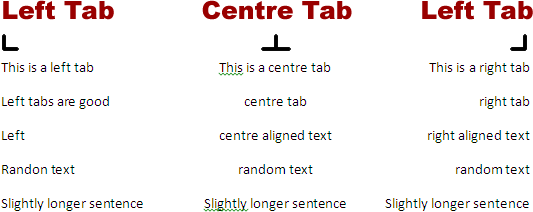
- Left tab aligns the following text on the left of the tab stop. Text flows to the right.
- Right tab aligns text on the right of the tab stop. Text flows to the left.
- Centre tabs aligns text at the middle of the tab stop. Text flows equally left and right with the tab stop being the centre point.
- Decimal tab aligns numbers on their decimal point. Decimal tabs are useful when aligning a column of numbers.
Examples of Tabs
- This is how the Decimal Tab works. Note that the decimal
points are all lined up to an imaginary vertical line running directly below
the tab stop. The numbers to the right
and left of the decimal point may not appear line up, but the decimal points
themselves are all aligned up.

Setting a Tab
- Select the line(s) or paragraph(s) where you want tab stops to be created.
- Click the tab selection button until the type of tab you want to insert appears.
- Position (don't drag) the mouse pointer at the point on the ruler where you want to place the tab.
- Click the mouse button once.
- Repeat steps 2 through 4 to set additional tabs for the selected paragraph(s).
- Repeat steps 1 through 4 to set additional tabs for different line(s) or paragraph(s).
Moving a Tab
Once a tab has been placed on the
ruler, you can adjust the setting by dragging the tab to the new location.
- Place the mouse pointer on the tab that needs to be moved.
- Drag to a new location.
Deleting a Tab
- Select the line(s) or paragraph(s) that are formatted with the tab setting you want to delete.
- Place the mouse pointer on the tab to be removed.
- Drag the tab down from the ruler into the document.
- Repeat steps 2 through 4 to remove additional tabs from the selected text.
Paragraph Indents
The indent tool on the ruler
controls where the lines of a paragraph begin. There are three functions the
indent tool:
- First line indent which sets the position of the first line of the paragraph.
- Hanging indent which controls where the remaining lines (all lines of the paragraph except the first line) are positioned.
- Full/Left indent which controls the all lines of the paragraph.

Setting a First Line Indent
- Select the paragraph(s) you wish to change the first line indent for
- Place the mouse pointer on the top triangle of the indent marker. You will know that the pointer is positioned correctly when the "First Line Indent" tool tip appears.
- Drag the mouse to move the indent marker to the desired location on the ruler.
- Release the mouse button.
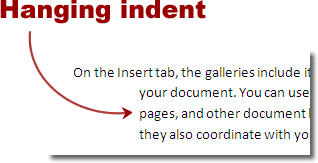
Setting a Hanging Indent
Hanging indents are mainly used to
align additional paragraph lines with the first line's tabbed indent. Numbered
and bulleted lists are examples of when hanging indents are typically applied.
The numbered steps below are an example of what paragraphs with hanging indents
look like.
- Select the paragraph(s) you wish to change a hanging indent for.
- Place the mouse pointer on the bottom triangle of the indent marker. You will know that the pointer is positioned correctly when the "Hanging Indent" tool tip appears.
- Drag the mouse to move the indent marker to the desired location on the ruler.
- Release the mouse button.
Setting a Full/Left Indent
The full/left indent tool controls
the starting point for all lines of the paragraph.
- Select the paragraph(s) you wish to change a full/left indent for.
- Place the mouse pointer on the bottom square of the indent marker. You will know that the pointer is positioned correctly when the "Left Indent" tool tip appears.
- Drag the mouse to move the indent marker to the desired location on the ruler.
- Release the mouse button.
WEB LINKS
The following links will allow you to view two YouTube videos sessions on using Tabs and Indents in Word 2010.The first link plays for approximately 4 ½ minutes and the second plays for approximately 12 minutes.
INDENTS AND TABS – Exercise 1
- Type the following document and save it as ‘FURNITURE WEST’
- Create a Left/Full Indent at 1.5 cm for the paragraph starting with the text ‘A one-year guarantee on any piece of furniture …..’
- For the tabulated text (Kennington Oak Dining Table etc.) set one left tab at 2cm and one decimal tab at 10cm. Remove theses tabs when this section is typed (TIP: make sure the cursor is on a clear line before you remove the tabs).
- Print one copy of the document. Save and close the document
FURNITURE WEST, INC.
6138 West Peoria Avenue
Galway
Jane Brown
123 Elm Street
Galway
28th February 2013
Dear JaneWe at Furniture West are happy to announce our new locations at 6138 West Peoria Avenue. As at each of our other stores, you will be able to receive Furniture West’s traditional quality service:
A one-year guarantee on any piece of furniture you buy. This includes outdoor furniture as well. Free delivery and set-up regardless of your location.
Each Furniture West location is offering special sale prices for this month:
Kennington Oak Dining Table €1,489.99
Swanson Soft & Love Seat €999.99
Floor Lamp €349.55
We look forward to helping you shop at any of our valley locations.
Sincerely
_____________________
Stephen Dolan
Manager
INDENTS AND TABS – Exercise 2
Type the following document and save it as ‘QUARTER FIGURES’
- For the first section (To:, From:, Date: and Subject) set one left tab at 2.5 cm. Remove this tab when this section is typed (TIP: make sure the cursor is on a clear line before you remove the tabs).
- Create a First Line Indent at 1.5 cm for the paragraph starting with the text ‘Please find below the Fourth Quarter figures...’
- For the second tabulated text section (Manufacturing Output etc.) set one left tab at 3.5cm and one decimal tab at 10cm. Remove theses tabs when this section is typed (TIP: make sure the cursor is on a clear line before you remove the tabs).
- Create a Left/Full Indent at 2 cm for the paragraph starting with the text ‘Note: This period includes the five-day...’
- Print one copy of the document. Save and close the document
MEMORANDUM
TO: Kevin Dolan
FROM: Michael Jones
DATE: 20th February 2013
SUBJECT: FOURTH QUARTER FIGURES
Please find below the Fourth Quarter figures. These will be issued during the next few days. If you have any changes, please contact the Accounts Department immediately.
Manufacturing Output €34,589.87
Manufacturing Costs €20,467.65
Depreciation €4,367.99
Incidental Expenses €678.53
Note: This period includes the five-day physical inventory, during which manufacturing and shopping activities where suspended.
INDENTS AND TABS – Exercise 3
- Type the following document and save it as ‘DEPARTMENT MEMO’
- For the first section (To:, From:) set one left tab at 2.5 cm. Remove this tab when this section is typed (TIP: make sure the cursor is on a clear line before you remove the tabs).
- Create a Left/Full Indent at 2 cm for the paragraph starting with the text ‘Expense reports are to be submitted....’
- Create a First Line Indent at 1.5 cm for the paragraph starting with the text ‘All communications regarding the 10K run....’
- For the second tabulated text section (Administration etc.) set two left tabs at 3.5cm and 8cm. Remove theses tabs when this section is typed (TIP: make sure the cursor is on a clear line before you remove the tabs).
- Create a Left/Full Indent at 1cm for the paragraph starting with the text ‘Congratulations to the following branches....’
- For the third tabulated text section (Houston, TX etc.) set one left tab at 4cm and one decimal tab at 10m. Remove theses tabs when this section is typed (TIP: make sure the cursor is on a clear line before you remove the tabs).
- Print one copy of the document. Save and close the document
MEMORANDUM
TO: All Managers
FROM: Joe Weatherby
SUBJECT: Information Bulletin
TRAVEL EXPENSES
New procedures for reporting travel expenses have been approved. Please review these with members of your staff.
Expense reports are to be submitted to Accounting by the 5th day of the month following the month claimed. All receipts and/or notations should be submitted in date order, stapled to the expense report. Reimbursements will be paid on the 10th day of the month.
DEPARTMENTAL LIAISONS FOR 10K RUN
All communications regarding the 10K run should be directed toward the appropriate liaison for each department. They are:
Administration Judy Blake
Pilots Kim Soo Young
Machinists Wilson Corrigan
COMMUNITY FUND
Congratulations to the following branches for their contributions to the CompAir Community Development Fund:
Houston, TX €133,087.00
Boston, MA €854.75
Denver, CO €12,432.50
Los Angeles, CA €975.00